Pixel tracking is a method used to collect data about user interactions on websites and emails. It involves embedding a tiny, invisible image or JavaScript code that logs valuable information when triggered. This data helps businesses measure performance, optimize campaigns, and understand user behavior. Here's what you need to know:
- What It Does: Tracks actions like page views, purchases, and form submissions by collecting metadata such as IP addresses, browser types, and timestamps.
- Why It Matters: Links marketing efforts to outcomes, improving ROI by up to 35%.
- How It Works: When a page loads, the pixel sends an HTTP request to a server, transmitting data for analysis.
- Challenges: Privacy laws, browser restrictions, and ad blockers can limit tracking accuracy, with up to 60% of data potentially lost.
- Solutions: Use hybrid tracking (browser and server-side) to increase accuracy to 80–95%, and tools like Google Tag Manager or Meta’s Conversions API for better data management.
This guide breaks down how to set up and optimize tracking pixels for platforms like Google Ads, Meta, and LinkedIn, while addressing common hurdles like privacy regulations and technical limitations.
How Pixel Tracking Works
The Basic Mechanics
When you visit a webpage or open an email, your browser quietly sends a request to fetch a tracking pixel from a remote server. This request is a standard HTTP call, and because the pixel is just a tiny 1x1 transparent image, the process happens behind the scenes without you noticing.
This HTTP request carries a lot of information in its headers and query parameters. For instance, it includes details like your IP address, browser type (via the User-Agent string), the time of the request, and the URL of the page or email that triggered the request. Many modern tracking pixels also use JavaScript to gather additional data, such as your screen resolution, window size, and even how far you've scrolled on the page.
"Think of a tracking pixel like a tiny, invisible tripwire on a webpage. When your browser loads the page, it also trips over this wire. That tiny action sends a signal back to a tracking server, logging the interaction." - David Pombar, Digital Analytics Expert
Data Collection and Transmission
Once the tracking pixel is triggered, the server logs the HTTP request and all the metadata it carries. It can also include custom parameters, such as a unique User ID, a Product ID, or specific event types like "PageView" or "Add to Cart." Platforms like Meta and Google often attach this kind of information to the pixel's URL as query parameters, ensuring a robust data package is sent with every request.
If cookies were previously set on your device, these are automatically sent along with the pixel request. This allows companies to match anonymous browsing activity with logged-in user profiles. In mobile apps, the process is slightly different. Instead of pixels, an SDK (Software Development Kit) tracks user actions - like purchases - and sends the data directly to the platform's API.
All this collected data is stored in databases, where it becomes a goldmine for businesses. They use it to map out user journeys, pinpoint where potential customers drop off in their conversion funnels, and evaluate how well their marketing efforts are working.
Now that we've covered how pixel tracking works, the next step is understanding how to set up tracking pixels on popular platforms.
sbb-itb-94eacf4
Cross-Platform Conversion Tracking on Google & Facebook Ads
Setting Up Pixel Tracking Across Platforms
To make the most of pixel tracking, you need to know how to set it up on different platforms. While each platform has its own process, the general steps are pretty consistent: generate a tracking code, install it on your website, and verify that it’s working. You can do this by manually adding the code to your site, using Google Tag Manager as a centralized tool, or leveraging partner integrations.
Here’s a closer look at how to set up tracking pixels for popular platforms, along with some essential tips.
Google Ads Tracking Pixels
For Google Ads, you’ll start by creating a conversion action in your account. This generates a unique Conversion ID and a tag snippet. If you’re using WordPress, you can simplify the process by entering your Conversion ID into a tracking plugin, such as MonsterInsights, instead of directly editing your site’s code. If you’re juggling multiple platforms, Google Tag Manager can save you time by allowing centralized updates without manual code changes.
Once your pixel is in place, you can track specific user actions - like purchases or form submissions - by setting up conversion goals. Google Analytics 4 (GA4) works seamlessly with Google Ads, helping you create custom events (e.g., "Submitted an Application") and analyze traffic sources for those conversions. You can find this data under Acquisition > All Traffic > Channels in GA4.
Meta (Facebook) Pixel
The Meta Pixel setup starts in the Events Manager under Connect Data Sources > Web. You’ll get a base JavaScript code, which you can install in one of three ways:
- Manually add it between the
<head>tags on your site. - Use Google Tag Manager by creating a "Custom HTML" tag that fires on all pages.
- Connect through partner platforms like Shopify or WooCommerce.
Meta Pixel tracks predefined events such as PageView, AddToCart, and Purchase using the fbq('track', 'EventName') function. These events often require specific parameters like transaction value, currency, and product IDs. For example, a Purchase event needs details about the amount spent and the items bought. You can also use Meta’s Event Setup Tool to track actions like button clicks without writing any code.
Keep in mind that browser-based tracking alone often misses a chunk of conversions due to ad blockers and iOS privacy updates - capturing only 40–60% of data. To improve accuracy (up to 80–95%), you can pair the Meta Pixel with the Conversions API, which sends data directly from your server. Verify your setup using the Meta Pixel Helper Chrome extension, and aim for an Event Match Quality score between 8 and 10 (a score below 4 signals major issues).
| Meta Standard Event | When to Use | Required Parameters |
|---|---|---|
| PageView | Every page (automatic) | None |
| ViewContent | Product or landing pages | content_name, content_ids |
| AddToCart | When an item is added to the cart | value, currency, content_ids |
| Purchase | After successful payment | value, currency, content_ids |
| Lead | Form submission or signup | content_name |
LinkedIn Insight Tag
LinkedIn’s tracking pixel, called the Insight Tag, is available in Campaign Manager under Analyze > Insight Tag. By clicking "See my Insight Tag", you’ll find your unique Partner ID. If you’re using Google Tag Manager, create a new tag with the LinkedIn Insight Tag template and insert your Partner ID. For manual installation, place the full script block right before the closing </head> tag on every page of your site.
To confirm the tag is working, LinkedIn provides the Insight Tag Helper Chrome extension, which lets you check its functionality in real time. The tag automatically tracks page views and can be customized to monitor conversions and campaign metrics. Using Google Tag Manager keeps this process streamlined and prevents clutter in your site’s code.
Common Challenges in Cross-Platform Pixel Tracking
Even with a well-configured pixel setup, several roadblocks can interfere with complete data capture. These issues often arise from a mix of privacy regulations and technical hurdles.
Privacy Regulations and Restrictions
Privacy laws like GDPR and CCPA have significantly changed the tracking landscape. GDPR requires explicit user consent and clear disclosure about how data is collected and shared, while CCPA classifies pixel-collected data - such as IP addresses, device IDs, and browsing behavior - as personal information. Under CCPA, businesses must disclose third-party data sharing and provide opt-out options.
Apple's iOS App Tracking Transparency (ATT) framework has been especially disruptive. Unless users explicitly opt in, data collection on Apple devices is severely restricted. Unsurprisingly, over 85% of iOS users opt out of tracking. Safari's Intelligent Tracking Prevention (ITP) adds another layer of complexity, limiting first-party cookies to a 7-day lifespan and stripping click identifiers like fbclid and gclid from URLs.
Common compliance mistakes include mislabeling marketing pixels as "analytics only" and neglecting to maintain a clear audit trail of user consent. To remain compliant, it's crucial to use a Consent Management Platform (CMP) that blocks tracking scripts until valid consent is secured. Regularly auditing all deployed pixels ensures that your privacy policy aligns with actual tracking practices and data-sharing arrangements.
But privacy regulations aren’t the only hurdle - technical challenges also play a major role in disrupting pixel tracking.
Technical Limitations
Technical barriers can significantly impact the accuracy of pixel data. By 2026, around 88% of browsers are expected to block some form of tracking by default. This trend has already created a massive 40-60% data gap where conversions fail to reach ad platforms, a phenomenon often called "Ghost CPA." This gap leads ad platforms to overestimate acquisition costs because many conversions go untracked.
"The 40-60% data gap isn't a temporary problem - it's the new baseline."
- PantoSource
The deprecation of third-party cookies has also rendered traditional cross-site tracking ineffective. Chrome, which dominates with a 62% market share, has introduced its Privacy Sandbox to replace third-party cookies. Meanwhile, Safari and Firefox have implemented strict tracking protections by default. On top of this, ad blockers add another layer of difficulty - by March 2023, 31% of U.S. adults were using ad blockers to safeguard their privacy.
Pixel tracking can also fail due to technical vulnerabilities. A simple JavaScript error can silently prevent a pixel from firing, and without active monitoring, these issues often go unnoticed. Additionally, heavy tracking scripts can slow down your website, and even a 100-millisecond delay in load time can reduce conversion rates by 7%.
To tackle these challenges, compare your backend sales data - such as Shopify transactions, CRM records, or payment processor logs from website builders for online stores - against the conversion data reported by ad platforms. This comparison helps you calculate your actual "block rate", revealing the extent of your data loss. With this insight, you can adjust your bidding strategies to reflect the true performance of your campaigns.
Analyzing and Optimizing Pixel Data
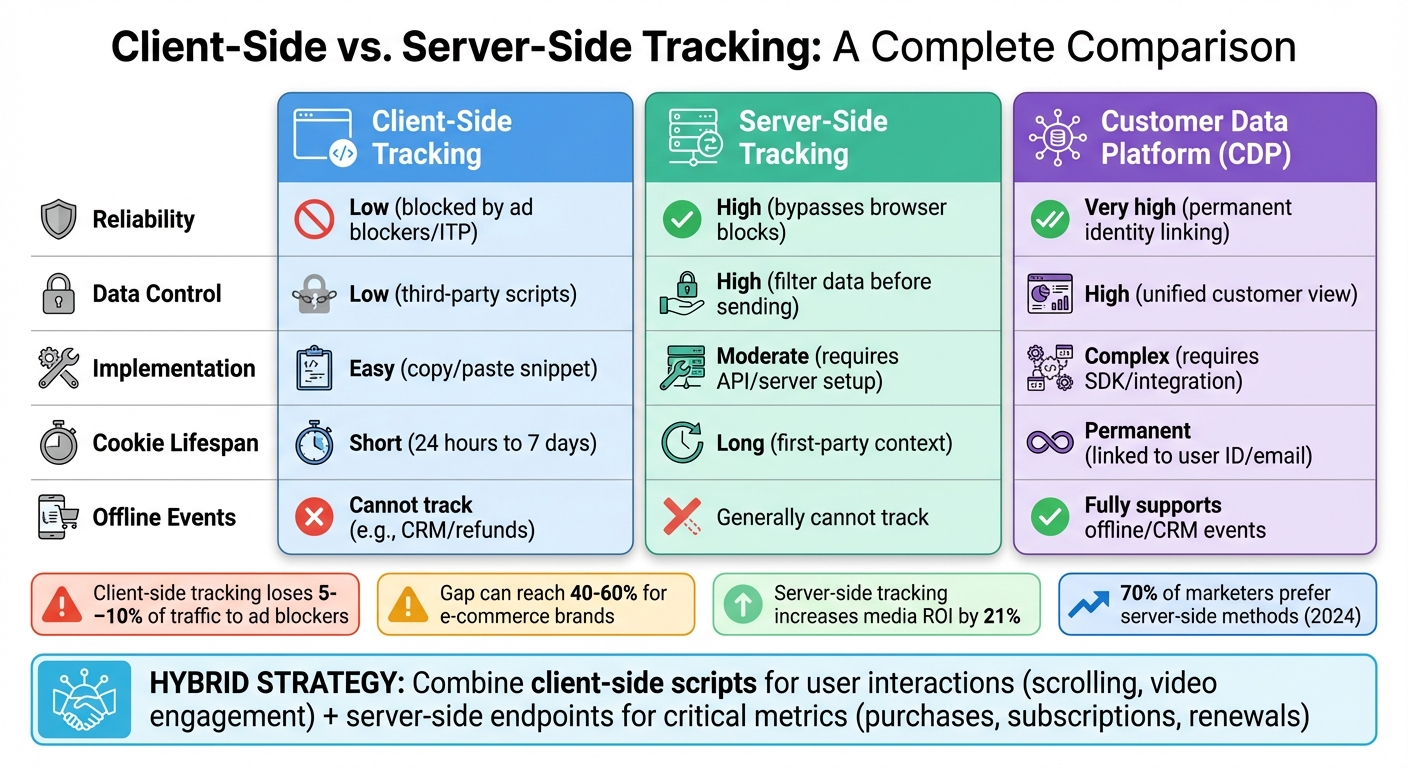
Client-Side vs Server-Side Pixel Tracking Comparison
Once you've tackled the technical and privacy hurdles, the next step is to dive into your collected data. Raw pixel data from various platforms often lacks context or coherence, so it's essential to consolidate and analyze it with the right tools and techniques.
Consolidating Data Across Platforms
To make sense of tracking data from multiple sources, consolidation is key. Tools like Google Tag Manager (a Tag Management System, or TMS) act as a central hub, streamlining the management of multiple pixels without requiring direct code changes. As Trackingplan aptly puts it:
"A Tag Management System is like a power strip for your website. Instead of wiring every single device directly into the wall, you just plug them all into one manageable hub".
For more advanced needs, Customer Data Platforms (CDPs) take things a step further. They can link a visitor's initial website interaction to permanent identifiers, such as an email address, creating a comprehensive view of the customer journey. CDPs also enable server-side tracking, allowing you to capture offline events - like CRM updates, subscription renewals, or refunds - and feed that data back to ad platforms using server-side APIs.
Another critical tool in cross-platform tracking is UTM parameters, especially the utm_id parameter. This unique identifier ties your platform's campaign ID to attribution tools, ensuring consistent data reconciliation, even when naming conventions differ. For conversions that happen outside the browser, server-side Conversions APIs are essential for capturing and integrating these events into your dashboard.
To avoid errors, stick to a single implementation method. Mixing hard-coded pixels with TMS deployments can lead to duplicate events, such as a single purchase being recorded twice, which inflates your revenue and ROAS metrics. Automated monitoring tools, like real-time Slack alerts, can help catch pixel disruptions. Once your data is consolidated, the next step is to evaluate your tracking methods to ensure they're as reliable and accurate as possible.
Client-Side vs. Server-Side Tracking
The shift in tracking technologies has made it vital to understand the differences between client-side and server-side approaches. Each method has its strengths and limitations, as shown in the table below:
| Feature | Client-Side Tracking | Server-Side Tracking | Customer Data Platform (CDP) |
|---|---|---|---|
| Reliability | Low (blocked by ad blockers/ITP) | High (bypasses browser blocks) | Very high (permanent identity linking) |
| Data Control | Low (third-party scripts) | High (filter data before sending) | High (unified customer view) |
| Implementation | Easy (copy/paste snippet) | Moderate (requires API/server setup) | Complex (requires SDK/integration) |
| Cookie Lifespan | Short (24 hours to 7 days) | Long (first-party context) | Permanent (linked to user ID/email) |
| Offline Events | Cannot track (e.g., CRM/refunds) | Generally cannot track | Fully supports offline/CRM events |
Client-side tracking often loses 5% to 10% of traffic to ad blockers and privacy settings. However, the real gap can be much larger - reaching as high as 40% to 60% for e-commerce brands - due to iOS privacy changes and cookie expiration limits. This is why many businesses are moving toward a hybrid tracking approach.
A hybrid strategy combines the best of both worlds. Use client-side scripts to track user interactions, such as scrolling or video engagement, while relying on server-side endpoints for critical business metrics like purchases, subscriptions, and renewals. This dual approach provides immediate behavioral insights while ensuring accurate conversion tracking that bypasses browser limitations. Notably, brands that adopt server-side tracking have reported a 21% boost in media ROI, and a 2024 survey found that 70% of marketers prefer server-side methods for maintaining data accuracy.
Conclusion
Pixel tracking has become a cornerstone of data-driven marketing. Knowing how these invisible tools function across various platforms is critical for making informed budget decisions and improving your return on ad spend. As highlighted in the setup and challenges sections, mastering cross-platform pixel tracking plays a key role in how effectively you can allocate resources and grow your business.
This shift in tracking methods leads to measurable gains in campaign performance. Traditional browser-only tracking captures just 40% to 60% of actual conversions. However, combining browser pixels with server-side APIs, like Meta's Conversions API, can increase accuracy to 80% to 95%. This level of precision can mean the difference between running profitable campaigns and wasting your marketing budget. In fact, properly configured tracking can enhance ROI by up to 35%, while incomplete tracking could drop campaign efficiency by 30% to 50%.
The solution is straightforward: adopt a hybrid tracking strategy. This means blending browser pixels with server-side APIs, using tools like Google Tag Manager for flexibility, and focusing on tracking high-value actions - such as purchases and leads - rather than just page views. Relying solely on PageView events leaves a significant portion of pixel capabilities untapped.
FAQs
Do I need both pixel and server-side tracking?
Using both pixel tracking and server-side tracking together offers the most precise insights into user behavior. Here's why:
Pixel tracking works directly in the browser, capturing interactions like clicks, page views, and purchases. However, it's not foolproof - ad blockers and browser privacy settings can interfere and cause data gaps.
On the other hand, server-side tracking avoids these limitations by collecting data through your own servers, making it less vulnerable to such restrictions.
By combining these methods, you get the best of both worlds. This hybrid approach ensures more reliable data for marketing attribution and user behavior analysis, which is especially critical for eCommerce platforms aiming to optimize their strategies.
How can I track conversions with cookie limits?
To keep tracking conversions even with cookie restrictions, consider using pixel tracking. Pixels are tiny, invisible images embedded in your site that collect data about user interactions. This allows you to measure campaign performance without depending entirely on cookies.
For more reliable insights, pair pixel tracking with other strategies like device identifiers, logged-in user data, or server-side tracking. These methods help businesses navigate privacy limitations while refining their marketing strategies with precision.
How do I prevent duplicate pixel events?
To avoid counting the same conversion multiple times, it's essential to use event deduplication techniques. Here's how you can do it effectively:
- Assign unique event IDs: Generate a distinct ID for every conversion. This helps identify and filter out duplicate events.
- Merge browser and server-side data: Combine information from browser pixels with server-side events, applying proper logic to eliminate duplicates during the process.
- Monitor with tools: Use tools like Meta Pixel Helper to track event triggers and ensure deduplication is functioning as expected.
This approach ensures your conversion data remains accurate and reliable.