Accessibility feedback is essential for creating websites that work well for everyone, including users with disabilities. While automated tools catch some issues, they miss many critical barriers like confusing navigation or screen reader problems. Collecting direct feedback from users fills these gaps, improves usability, and ensures compliance with laws like the ADA. Here's what you need to know:
- Why Feedback Matters: Automated tools detect only 30-40% of problems, leaving user feedback to uncover the rest. This helps address real challenges users face, like keyboard traps or cognitive load issues.
- Where to Collect Feedback: Use multiple channels like accessible web forms, email, phone, live chat, and in-the-moment tools (e.g., feedback buttons). Each method caters to different user needs.
- How to Gather Useful Feedback: Ask specific, actionable questions (e.g., "Was navigation possible with a keyboard?"). Timing is key - request feedback right after users complete tasks.
- Organizing Feedback: Categorize issues by severity (e.g., critical, high, medium, low) and prioritize fixes based on user impact and business relevance.
- Responding to Feedback: Always acknowledge submissions, update users on progress, and close the loop by sharing how their feedback led to changes.
Why Collecting Accessibility Feedback Matters
Automated vs Manual Accessibility Testing Detection Rates
Gathering accessibility feedback bridges the gap between theoretical standards and practical enhancements, ensuring a better experience for all users.
Finding Real Barriers
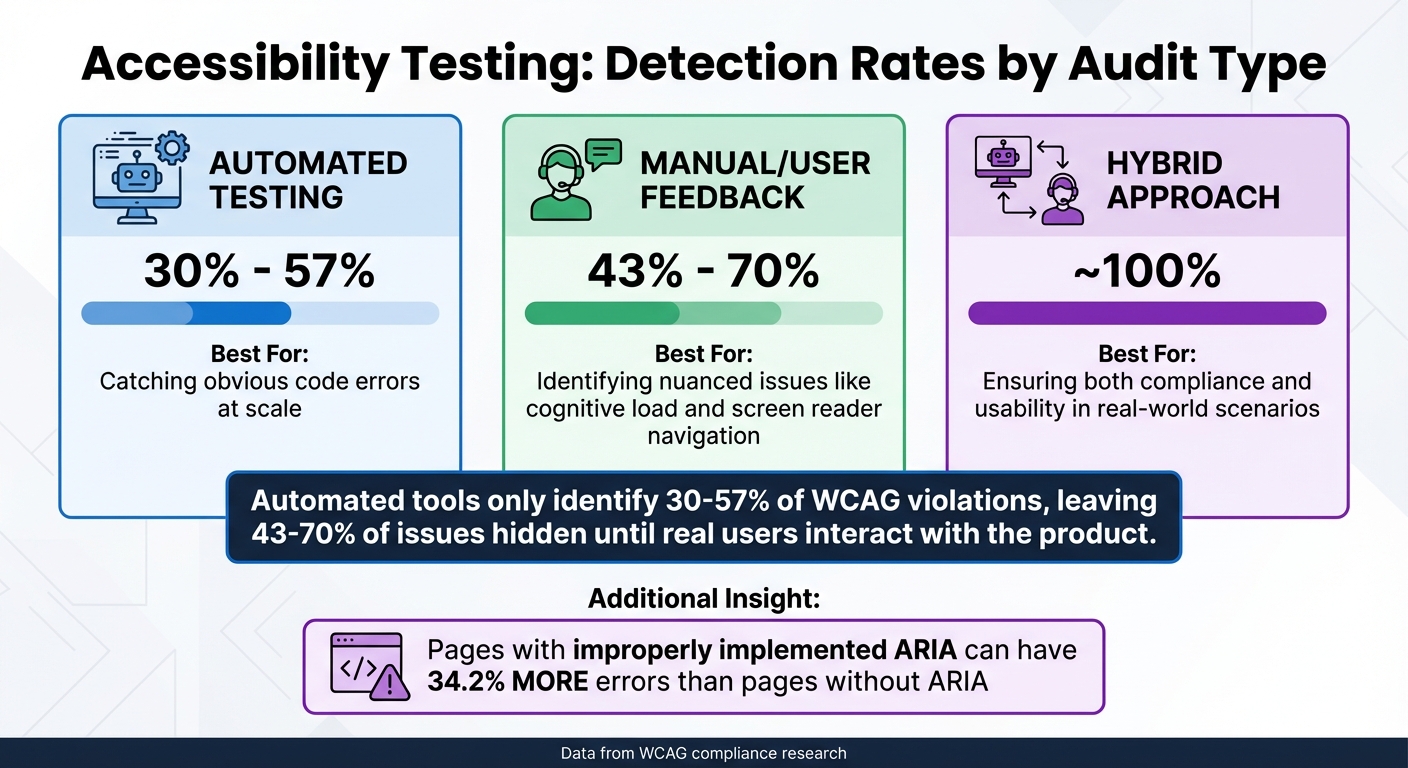
Automated tools alone can't catch everything. In fact, they only identify 30% to 57% of WCAG violations. This means a significant portion of issues remain hidden until real users interact with the product. For example, automated scans often miss problems like keyboard traps, where users get stuck navigating menus or forms, or poorly implemented ARIA attributes. These missteps can lead to pages with 34.2% more errors than those without ARIA, even though the code technically exists but doesn't function properly.
This is where user feedback shines. Unlike algorithms, real users can identify subtle issues that impact usability. A combined approach - using automated scans alongside user feedback - offers a more comprehensive solution, addressing the gaps algorithms tend to overlook.
| Audit Type | Detection Rate | Best For |
|---|---|---|
| Automated | 30% - 57% | Catching obvious code errors at scale. |
| Manual/User Feedback | 43% - 70% | Identifying nuanced issues like cognitive load and screen reader navigation. |
| Hybrid | ~100% | Ensuring both compliance and usability in real-world scenarios. |
This hybrid method not only uncovers hidden barriers but also helps prioritize the most impactful fixes.
Deciding What to Fix First
User feedback highlights the problems that directly prevent people from completing key tasks, such as making a purchase or signing up. This insight allows teams to prioritize using a straightforward formula: Scope × Impact × Effort. It evaluates how many users are affected, how severely, and the resources needed to resolve the issue.
Take Matalan, for instance. In 2025, the retailer used feedback and surveys to identify bugs in their checkout process. By addressing these issues, they achieved a 1.23% increase in checkout conversion and saw a 400% ROI. Fixes at the template level proved especially effective, as correcting one template improved all pages that used it.
By focusing on challenges that matter most to users, teams can make meaningful improvements while fostering trust.
Building User Trust
When you actively seek feedback and act on it, you show users that accessibility is more than just a legal checkbox. It's about truly valuing their experience. This approach resonates with professionals - 97.7% of product teams incorporate user feedback into their research process, recognizing its role in building confidence and satisfaction.
For example, Bop Design, a marketing agency in California, introduced feedback tools that reduced reconciliation time by 75% and saved 10 management hours weekly. When users see their input lead to real change, frustration turns into loyalty. Closing the feedback loop - by acknowledging suggestions and sharing updates - shows a genuine commitment to inclusion.
sbb-itb-94eacf4
Where to Collect Accessibility Feedback
Gathering feedback from various channels is key to improving accessibility in practical ways. By offering multiple methods for users to share their input, you can accommodate a wide range of needs and preferences. Relying on just one channel won’t work for everyone. The goal is to make reporting accessibility barriers as simple and user-friendly as possible.
Web Forms and Surveys
Web forms are a great way to collect structured feedback while giving users instant confirmation of their submission. However, these forms must be designed with accessibility in mind to be effective. For example, every input field should have a properly connected label using the for attribute and the matching id of the input field [17, 19]. Keep forms straightforward - limit required fields to three or fewer to reduce cognitive load.
Use semantic HTML elements like <form>, <label>, <fieldset>, and <legend> instead of generic <div> tags [17, 19, 22]. Error messages should describe the issue in text rather than relying on color alone. Use the aria-describedby attribute to link error messages to the relevant fields [17, 19]. Avoid using placeholder text as a substitute for visible labels; placeholders disappear when users start typing, which can create confusion [18, 19, 20].
When asking for feedback, request specific details like the affected URL, a description of the issue, and the assistive technology being used [4, 15]. Acknowledge receipt of feedback within 1 to 2 business days to show users that their input is valued. While web forms are useful, it’s important to offer additional feedback options to capture the full range of user experiences.
Multiple Contact Methods
Depending on a single feedback channel can leave some users out. That’s why it’s important to provide a variety of options, such as chat, phone, email, and accessible website building tools like web forms. Email, for instance, is a familiar and accessible option that allows users to describe issues in their own words. It’s also cost-effective for smaller organizations.
Phone support offers a verbal communication option for those who may find typing difficult. To make this option accessible, avoid complex automated menus and ensure phone lines are monitored during business hours [4, 14]. Live chat is another option that allows users to address issues in real-time. However, the chat interface must be fully navigable by keyboard and easy to close without distraction. Social media can also serve as a feedback channel, giving users the flexibility to communicate in their preferred style.
| Feedback Method | Pros | Cons |
|---|---|---|
| Web Form | Collects structured data, provides instant confirmation, easy to track | May discourage users if too many fields are required |
| Simple and accessible; supports free-form responses | Can attract a higher volume of spam | |
| Phone | Offers verbal communication for users who prefer speaking | Requires staff monitoring and can involve confusing menus |
| Live Chat | Enables real-time problem-solving | Can be distracting if not designed for accessibility |
While these traditional methods are useful for planned feedback, sometimes you need tools that address issues as they happen.
In-the-Moment Feedback Tools
Tools that allow users to provide feedback while actively navigating your site can uncover barriers in real-time. Implementing advanced web building tools can help streamline this process. For example, persistent feedback buttons - small tabs positioned on the side of a webpage - let users report issues without disrupting their current task. These buttons should open accessible dialogs with ARIA labels, clear alt text for dismiss icons, and high color contrast.
You can also place context-specific forms on pages where users are more likely to encounter challenges, such as checkout or bill payment screens. If you use pop-ups or overlays, ensure they are fully keyboard-accessible and give users options to disable or extend any time limits [2, 6]. AI chatbots can help initiate feedback conversations, but they should complement human support rather than replace it entirely [2, 14].
"If users cannot give feedback easily, problems will continue to exist without the site owner being aware of the problems."
For these tools, include ARIA landmarks and roles to help users navigate and provide feedback seamlessly [23, 2]. If embedding a survey in a dialog, ensure the iframe has a descriptive title for screen readers. Finally, give users immediate confirmation - such as a success message - once their feedback is submitted [15, 6].
How to Gather Useful Feedback
To make improvements that matter, you need feedback that's clear and actionable. Vague remarks like "the site is hard to use" won't cut it. Instead, aim for specifics: what went wrong, where it happened, and which assistive tools were involved.
When to Ask for Feedback
Timing can make or break the quality of feedback you receive. The best time to ask is right after a user completes a task - like booking a flight or finishing a checkout process - while the experience is still fresh in their mind. For example, in 2023, Southwest Airlines adopted a "Task, Then Ask" strategy. They prompted users for feedback immediately after completing tasks like booking or canceling a flight, ensuring the feedback was relevant and timely.
Anna Kaley, a Senior User Experience Specialist at Nielsen Norman Group, highlights the importance of timing:
"Surveys asking users to give feedback during or after an interaction should not interrupt the users' task... immediate interruptions may reduce feedback quality".
Real-time feedback tools also help by collecting technical details like browser type, screen resolution, and the specific URL, removing much of the guesswork. Companies using these real-time methods see 62% higher revenue growth compared to those that don't. This approach ties directly into user-centered accessibility improvements.
Getting Specific Details
After nailing the timing, focus on the content of your questions. Instead of broad queries like, "How was your experience?", go for targeted ones such as:
- "Could you navigate using just a keyboard?"
- "Did any images lack meaningful alt text?"
Short, closed-ended surveys paired with optional open-ended questions work well. Visual feedback tools can also simplify the process by letting users click directly on problem areas. For instance, in January 2026, Bop Design, a California-based agency, switched to the BugHerd tool, which replaced manual screenshots and spreadsheets. This change cut reconciliation time by 75%, saving up to 10 hours a week and speeding up client responses by 25%.
Using clear, straightforward language ensures your questions are easy to understand. Setting expectations - like saying, "This survey only has 4 quick questions" - can also boost participation rates. To encourage detailed responses, consider offering perks such as loyalty points, discounts, or sweepstakes entries.
Creating Accessibility Advisory Groups
For deeper, ongoing insights, think about forming advisory groups. These small teams of diverse users can uncover accessibility challenges that automated tools might miss. Research shows that testing with just five users can reveal around 85% of usability issues. When building these groups, include individuals who use different assistive technologies, such as screen readers (NVDA, JAWS), magnification software, and voice control tools.
Fair compensation is important - expect to budget between $50 and $150 per hour for these experts' time. Taeke Reijenga, Founder of The A11Y Collective, offers this advice:
"Set aside 2-4 weeks for recruitment and run pilot tests to iron out technical issues. Before the main testing begins, schedule short technical check-ins to verify that everyone's equipment works together smoothly".
Advisory groups provide insights that go beyond technical compliance. They can help you determine if a "compliant" feature is actually intuitive and user-friendly in real-world scenarios.
| Feedback Method | Best For | Key Advantage |
|---|---|---|
| Visual Feedback Tools | Non-technical users | Easy point-and-click commenting on specific elements |
| Pulse Surveys | Ongoing monitoring | Quick, quarterly check-ins to identify new barriers |
| Advisory Groups | Deep insights | Expert feedback from assistive tech users |
Analyzing and Using Accessibility Feedback
Turning feedback into meaningful improvements requires a systematic approach. Without organization, scattered data can make it difficult to address issues effectively.
How to Organize Feedback
Start by consolidating all feedback into a single platform, such as Jira, Trello, or BugHerd. This ensures no issue gets lost and provides a streamlined process for addressing problems.
Categorize feedback by severity. WebAIM suggests four levels: Critical issues that block access (e.g., keyboard traps or missing captions), Significant issues that make tasks very difficult (like missing focus indicators), Moderate issues that require extra effort (such as poor heading structure), and Recommendations for best practices. Align each piece of feedback with a specific WCAG success criterion (e.g., 2.1 AA) to create a clear roadmap for remediation.
Additionally, group feedback by feature area (e.g., navigation, forms, checkout) and the assistive technology used (e.g., screen readers, voice control, magnification tools). This helps identify patterns - if multiple users report the same issue in the checkout process, it’s likely a systemic problem rather than an isolated bug.
Prioritize fixes by considering both user impact and business risk. For example, a moderate issue on a checkout page might take precedence over a critical issue on an archived blog post. You can use a prioritization matrix like the one below:
| Priority Level | Criteria | Examples |
|---|---|---|
| Critical | Blocks task completion for assistive technology users | Keyboard traps, missing form labels on login, lack of alt text for functional images |
| High | Causes significant difficulty but has a partial workaround | Poor heading hierarchy, low color contrast on primary text, issues with error identification |
| Medium | Degrades the user experience but does not prevent task completion | Missing skip links, inconsistent focus order in secondary navigation |
| Low | Minor or cosmetic issues affecting edge cases | Decorative images with redundant alt text, minor contrast issues on disabled buttons |
Source: Accessible.org
Avoid basing fixes solely on a single report without evaluating the broader context. A solution for one user might unintentionally create barriers for others. A structured approach like this ensures quicker and more effective resolutions.
Making Changes Based on Feedback
Once feedback is organized, it’s time to act. Transform categorized issues into actionable tasks with clear ownership and deadlines. Assign responsibilities based on the type of issue: design teams can address contrast and focus problems, front-end developers can handle ARIA and keyboard interactions, and content teams can update alt text and headings.
For example, Longhouse Branding & Marketing reduced reconciliation time by 88% and completed projects 2.5 weeks faster after adopting a structured feedback system.
Set timelines for addressing issues: tackle critical blockers within 30 days, high-priority issues within 60 days, and medium or low-level refinements within 90 days. For recurring problems, like missing form labels across a site, log them as a single global issue to be fixed across the board rather than creating individual tasks for each instance.
After implementing fixes, thorough verification is key. Automated tools typically catch only about 25% of accessibility issues, so retesting with the assistive technology that originally flagged the problem is essential. Accessible.org emphasizes:
"The most reliable verification is retesting by someone other than the developer who made the fix. Fresh eyes catch regressions and partial fixes".
Track progress through stages like Not Started, In Progress, Fix Deployed, and Verified. This keeps everyone aligned and ensures that fixes are fully effective before closing tasks.
How to Respond to Accessibility Feedback
Responding to accessibility feedback is more than just good practice - it's a way to show users that their input matters. When someone points out an issue, they're handing you a chance to improve. Acknowledging their effort and keeping them in the loop can build trust and encourage further engagement.
Acknowledging Feedback
Start by confirming receipt of feedback immediately. A simple "Thank you" message or a visual confirmation reassures users that their input was received. This is especially helpful for individuals with cognitive or memory challenges, as it eliminates any uncertainty about whether their submission went through.
Every piece of feedback - whether it's positive or negative - deserves acknowledgment. By doing this, you show users that their voices are valued. For example, Bop Design used BugHerd's tool to streamline feedback management, cutting reconciliation time by 75% and saving 10 hours of weekly management effort.
Marina Domoney, Marketing Communications Lead at BugHerd, highlights the importance of speed:
"Feedback response time... measures how quickly your team acknowledges and begins addressing new feedback. Faster response times improve client trust and user satisfaction by showing commitment to resolving issues promptly".
Tracking your response time as a performance metric can help you stay on top of critical issues. Aim to acknowledge urgent blockers within 48 hours. This not only builds trust but also demonstrates your commitment to accessibility.
Be upfront about the next steps. Let users know how their feedback will be used and provide a realistic timeline for any resolutions. If the feedback is negative, treat it as a chance to improve rather than a critique. Set clear expectations, and avoid overpromising on timelines you can't meet. This kind of transparency reassures users and lays the groundwork for effective follow-up communication.
Once feedback is acknowledged, the next step is keeping users informed about progress.
Updating Users on Progress
Acknowledgment is just the beginning - providing updates on progress is what truly closes the feedback loop. This step involves reaching out directly to the person who flagged the issue and explaining how it was addressed. A personal, one-on-one update is far more impactful than a generic newsletter or changelog.
There are three types of updates you should send:
- Shipped: Notify users within 24–48 hours when their suggested changes are implemented.
- Rejected: If you can't act on the feedback, explain why (e.g., technical limitations or competing priorities) within two weeks.
- Backlogged: Acknowledge receipt of the feedback within a week and provide quarterly updates for items that remain unresolved for more than 90 days.
Even when rejecting feedback, a clear explanation can encourage users to continue sharing their thoughts. For NPS-style feedback, prioritize responding to detractors within 48 hours to improve the chances of turning their experience around.
Surprisingly, only 5% of companies take the time to report back to users about their feedback. Tanya Negi, Content Specialist at Zonka Feedback, emphasizes:
"The strongest driver of future feedback is simple: users can see that their previous feedback led somewhere".
When you act on someone's feedback, let them know. Reference their specific suggestion, confirm the change has been made, and invite them to test it out. This approach transforms a one-off report into an ongoing collaboration that benefits both users and your organization.
Conclusion
Accessibility feedback plays a crucial role in bridging the gap between meeting technical standards and ensuring websites work well for everyone. While WCAG standards provide a strong starting point, they can't fully reflect the experiences of the millions of U.S. adults living with disabilities. Automated tools only catch about 30% to 40% of accessibility issues, leaving the rest to be uncovered through real-world interactions.
The best results come from combining multiple feedback methods, accessible forms, and direct input from users. Keeping users informed about how their feedback is used builds trust and leads to meaningful improvements. As Taeke Reijenga, Founder & CEO of Level Level, explains:
"Good accessibility testing starts with knowing what you're looking for. Take time to learn these standards – they'll help you spot issues more effectively and make informed decisions about what needs fixing first."
This highlights the importance of learning and applying accessibility standards to prioritize and address issues effectively.
Start with small, actionable steps. Try navigating your site using only a keyboard, review your forms to ensure labels are clear, and add an accessibility statement that includes a feedback link. These simple actions require minimal effort but can quickly reveal significant barriers.
FAQs
What’s the fastest way to start collecting accessibility feedback?
The fastest way to gather accessibility feedback is by using a mix of automated testing tools and manual checks. Automated tools can quickly identify 30-50% of issues, such as contrast errors or missing alt text, offering a solid starting point. After that, manual checks - like testing keyboard navigation - help verify usability and catch anything the tools might miss. This combination provides an efficient way to pinpoint and tackle accessibility barriers early on.
What details should I ask for in an accessibility report?
When you're requesting an accessibility report, make sure to ask for specific details. This includes compliance with standards like WCAG (AA or higher), a list of specific accessibility issues, and their exact locations within your platform. It's also important to understand how these issues impact users with disabilities.
The report should provide actionable recommendations for addressing the problems, along with the testing methods used (such as manual testing or tests conducted with assistive technologies). Additionally, request a breakdown of issues by category - for instance, visual or navigation-related problems - and include priority levels. This will help you prioritize fixes effectively.
How do I prioritize which accessibility issues to fix first?
When addressing accessibility, it's crucial to prioritize based on severity and user impact. Start with the issues that are most critical - those that prevent users with disabilities from accessing your content, such as problems with screen readers or keyboard navigation. Focus first on high-traffic areas and issues that may pose legal risks. Once these major barriers are resolved, shift your attention to less severe problems, especially quick fixes. This step-by-step approach ensures you're removing the biggest obstacles efficiently while steadily improving accessibility for all users.